Here’s how to create a tiled map overlay using iOS MKTileOverlay and MKTileOverlayRenderer.
First, you need a set of tiled map images to overlay. MapTiler (maptiler.com) is great for producing these from your own images. Specify the image bounds in terms of latitude and longitude; North, South, East, West to locate it in the world. The map tiles are then exported in folders named for zoom level and x and y tile coordinates. For example, my folder, covering the town of Glossop in the UK, is called Map1880 and contains subfolders 12, 13, 14, 15, 16 each containing image tile sets for these zoom levels. For my particular overlay, inside folder 15 I have seven subfolders each representing the tile row (i.e. x coordinates); 16202 to 16208. Inside each of these are the PNG image files, named with tile column numbers (i.e. y coordinates); e.g. 22160.png and 22161.png shown here.
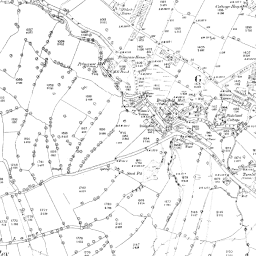
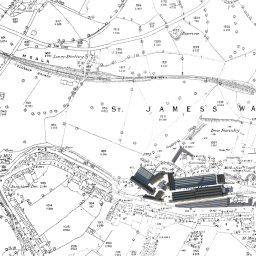
Add the top folder to your XCode project, making sure “Copy items if needed” is ticked and “Create folder references” selected. The folder should appear in blue in the Project Navigator.
In your ViewController, make sure you have a MapView, import MapKit and make subclass of MKMapViewDelegate.
import MapKit

class DetailViewController: UIViewController, MKMapViewDelegate {
    @IBOutlet var mapView: MKMapView!

    .....
}
In viewDidLoad() set the delegate and configure the overlay. Confusingly there seems to be two ways of specifying the tile y coordinates; either counting from the North or counting from the South. Using an older version of MapTiler I found that the y coordinates were not generated the same way round as Apple Maps so had to flip the y coordinates.
Also note that I am using a subclass of MKTileOverlay here simply so I can apply different alpha values to subsequent overlays.
override func viewDidLoad() {
    super.viewDidLoad()
    self.mapView.delegate=self;
    self.configureView()
}
func configureView() {
    self.mapView.mapType = MKMapType.Satellite
    self.recentreMap();

    //Get the URL template to the map tiles
    let baseURL = NSBundle.mainBundle().bundleURL.absoluteString
    let urlTemplate = baseURL?.stringByAppendingString("/Map1880/
                                              {z}/{x}/{y}.png/")

    var overlay = MyTileOverlay(URLTemplate:urlTemplate)

    //Need to flip maps generated with MapTiler
    overlay.geometryFlipped = true

    //Don't want to replace underlying Apple map
    overlay.canReplaceMapContent = false

    //Set the overlay transparency
    overlay.alpha = 0.7

    //Add the overlay
    self.mapView.addOverlay(overlay)

}
func recentreMap() {

    //Map centre on Glossop UK
    let centre = CLLocationCoordinate2D(latitude: 53.4435,
                                              longitude: -1.95)

     //Declare span of map
    let span = MKCoordinateSpan(latitudeDelta: 0.03,
                                      longitudeDelta: 0.03)

    //Set region of the map
    let region = MKCoordinateRegion(center: centre, span: span)
    self.mapView.setRegion(region, animated: false)
    self.mapView.regionThatFits(region)
}
mapView is called on delegate when tiles need displaying
func mapView(mapView: MKMapView!, rendererForOverlay overlay:
                            MKOverlay!) -> MKOverlayRenderer! {

    if overlay is MKTileOverlay {
        var renderer = MKTileOverlayRenderer(overlay:overlay)
        //Set the renderer alpha to be overlay alpha
        renderer.alpha = (overlay as MyTileOverlay).alpha

        return renderer
    }
    return nil
}
As stated above, I am using a subclass of MKTileOverlay simply so I can set overlays with different alpha values.
import Foundation
import MapKit

//This subclass was created to set alpha and for debug purposes
//Can set break point and check tile zoo, x, and y being accessed

class MyTileOverlay : MKTileOverlay {
    var alpha: CGFloat = 1.0

    override func loadTileAtPath(path: MKTileOverlayPath,
                  result: ((NSData!, NSError!) -> Void)!) {

         super.loadTileAtPath(path, result)

         //Set breakpoint or write out path for debug
         NSLog("Inside load")
    }
}
The override of loadTileAtPath() is included as I set a breakpoint at NSLog() to view the path string. I did this when trying to discover why my map overlay wasn’t displaying and found the y coordinate flip problem identified above.
Update:
The above code works but does appear to have a problem in that the renderer tries to load overlay tiles for the whole region in view even when the tile image files do not exist because they are outside the overlay map area. This results in logging of a stream of error messages. This needs looking into when I have time. In the meantime if anyone knows a good way of solving this then please let me know.

 Mixed Reality, UK